Specification Overview
Get to know the specification overview and how to navigate through the specifications
Written By Antonia Langner
Last updated About 23 hours ago
What are specifications?
Specifications in LastBIM allow you to define and manage detailed requirements for different components of your BIM projects. You can create specifications for various elements, such as exterior walls or structural components, and link them to relevant properties like material type or fire rating.
Specification actions in the overview
When you hover over a specification in the list, several quick actions appear:
Open
Open the full details of the specification and define classification and required properties for the specification.Edit
Modify the specification information like name, description, domain and parent specification.Add Child
Create a sub-specification that inherits and builds on the parent specification.
In the menu you find some further actions:
Duplicate
Make a copy of the element and select what information of the specification you want to include in the copy.History
See what was last changed in the specification and by whom.Delete
Delete the specification. If it has sub-specifications, decide wether those should be deleted too or moved to another place in the specification hierarchy.
In the Graph View you find all six actions when hovering on the specification and open the menu.
Navigating the Specification Table
The specification table allows you to manage all the different specifications. You can adjust the specification list by using the view settings: Sort, Columns, Filter, Group
Learn more about View settings in this article: View Settings
The Graph View
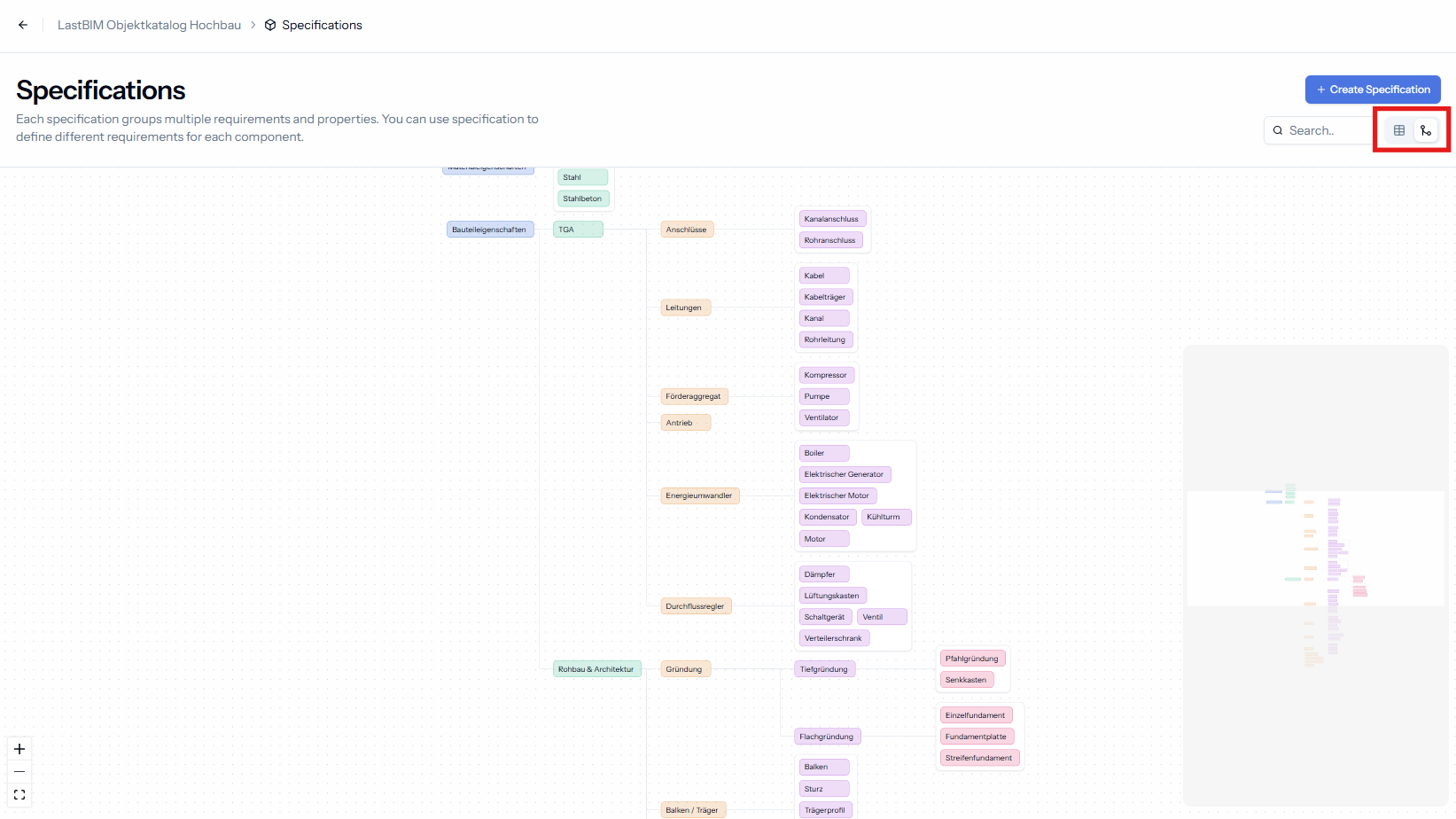
You can switch to a graph view to get a more visual representation of the specification hierarchy. You also have a search function in this view to find specifications in the tree more easily.
Was this helpful?
Still need help? Share an idea