Validate with our Plugins
Learn how to check if your model matches the information requirements using LastBIM.
Written By Stefan Hellweg
Last updated Over 1 year ago
If you have not yet attributed using the LastBIM plugins, first check out this article to understand how our integrations work:
The LastBIM plugins are synchronized with the information requirements on our platform. If you want to check if the information inside your model matches the requirements on the platform, you can use the Validation feature.
Running the validation
Select all components in the model that you want to validate and run the check.
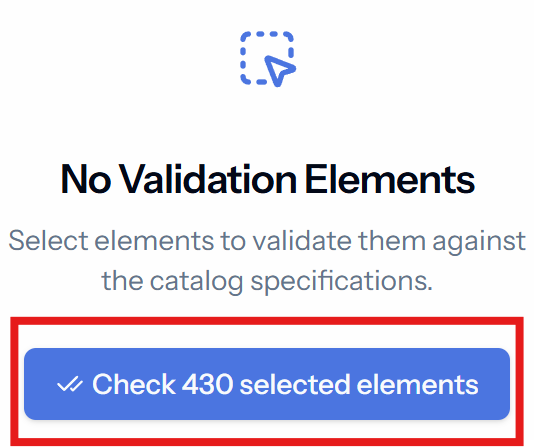
The speed of the validation depends on the size of your model. If you are validating large amounts of components at once, expect to wait a few moments for the validation to finish, especially if you are working in Desite MD.
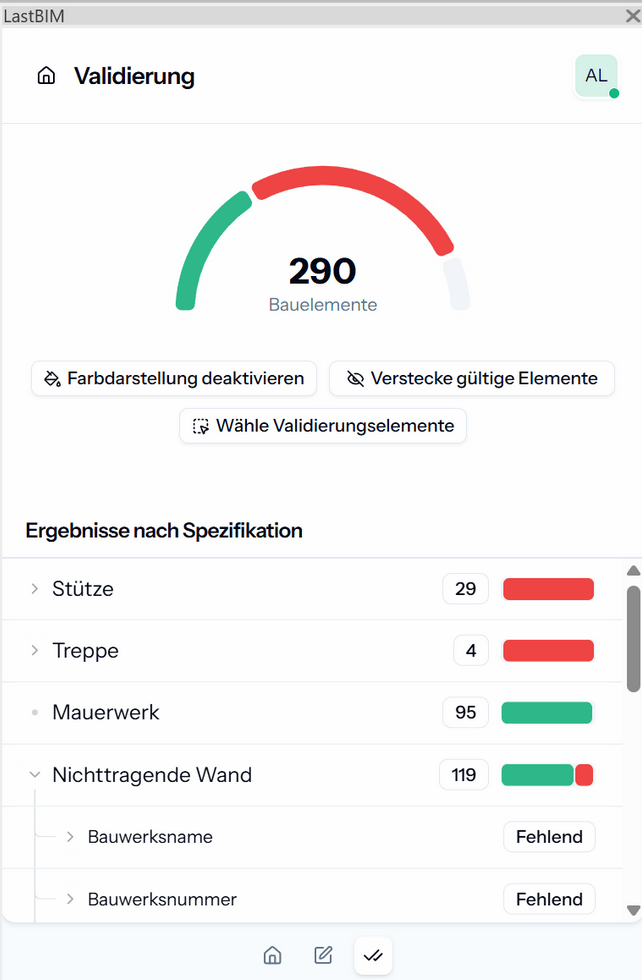
The validation results are color coded:
Working with the validation results
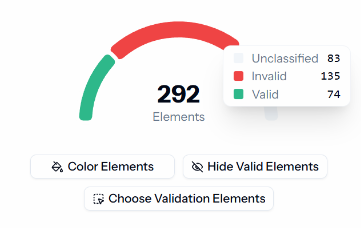
Results Diagram
Hover the diagram to see the exact number of invalid, valid and unclassified model elements. By clicking on one of the colors, the respective elements are selected in the model.
Color Elements
Select Color Elements to color the elements in the model view based on the validation results.
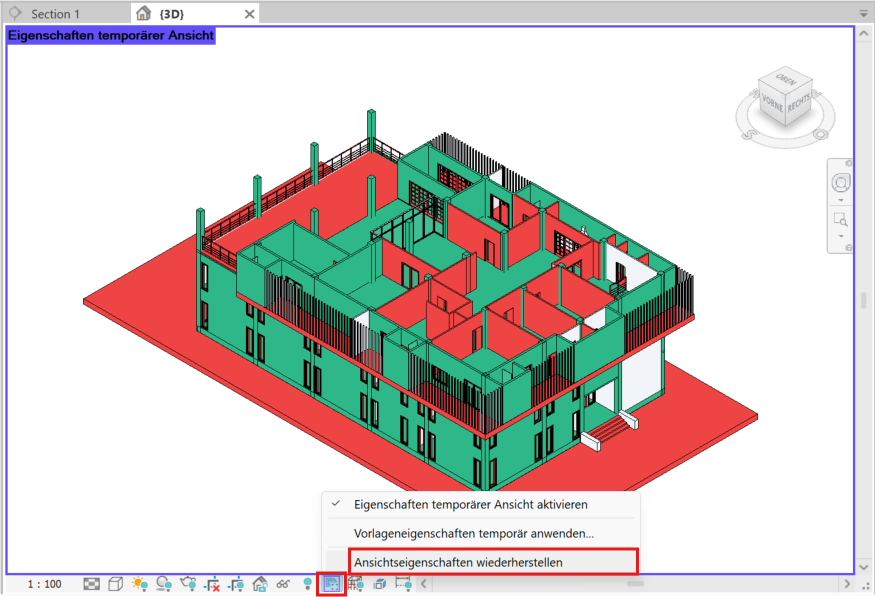
The purple border will indicate that the model is colored temporarily. You can disable the coloring via the same button in the plugin.
If this should not be possible somehow, use the native functions to disable the temporary view:
Hide Valid Elements
You can hide the valid elements in the model view by clicking on Hide Valid Elements to see only those elements that need to be worked on.
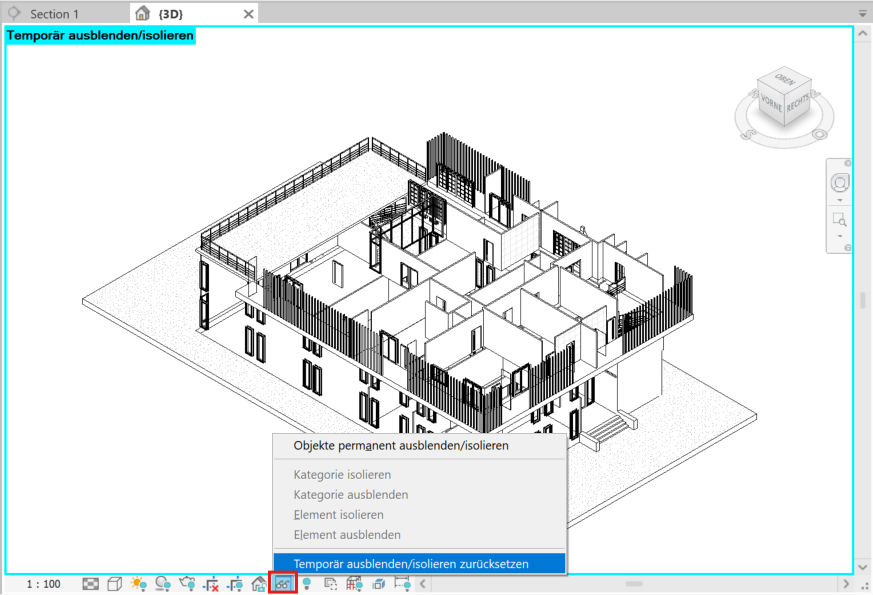
The blue border will indicate that elements are temporarily hidden in the model view.
By clicking on the same button again you can reset the view to see the valid elements again.
If this should not be possible somehow, use the native function to reset the view:
Results by Specification
Use the Results by Specification section to select elements based on their specification and issues and to attribute them further.
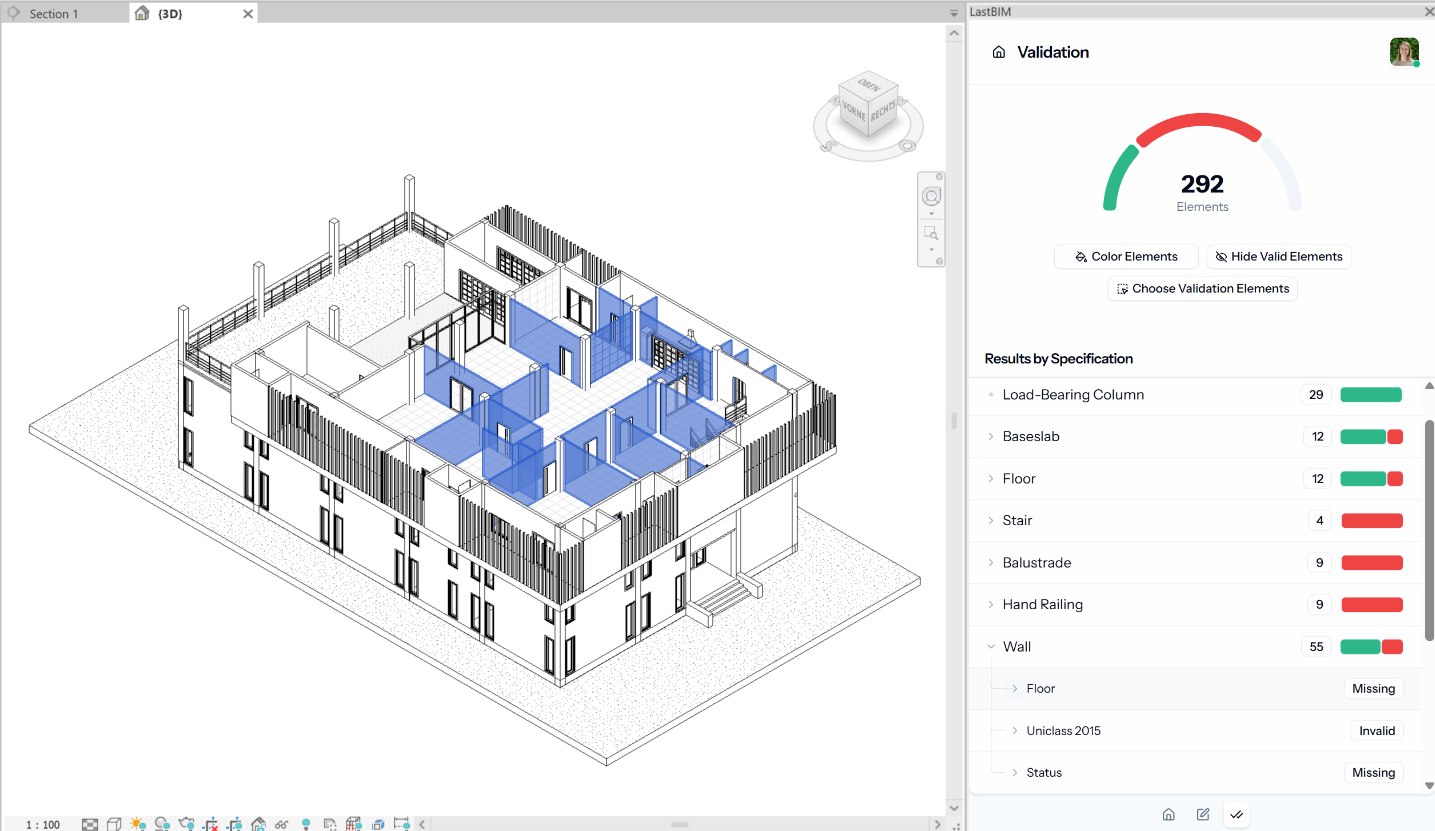
Click on a specification, such as 'Wall', to select all the elements belonging to that specification in the model.
The number indicates how many elements belong to this specification.The color bar behind shows how many of these elements are valid (green) and how many are invalid (red).
Expand the specification to see which properties are missing or invalid for the elements of this specification.
Click on the property, such as 'Floor', to select all elements to which this issue applies.
Expand the issue to see the individual elements and select them one by one.
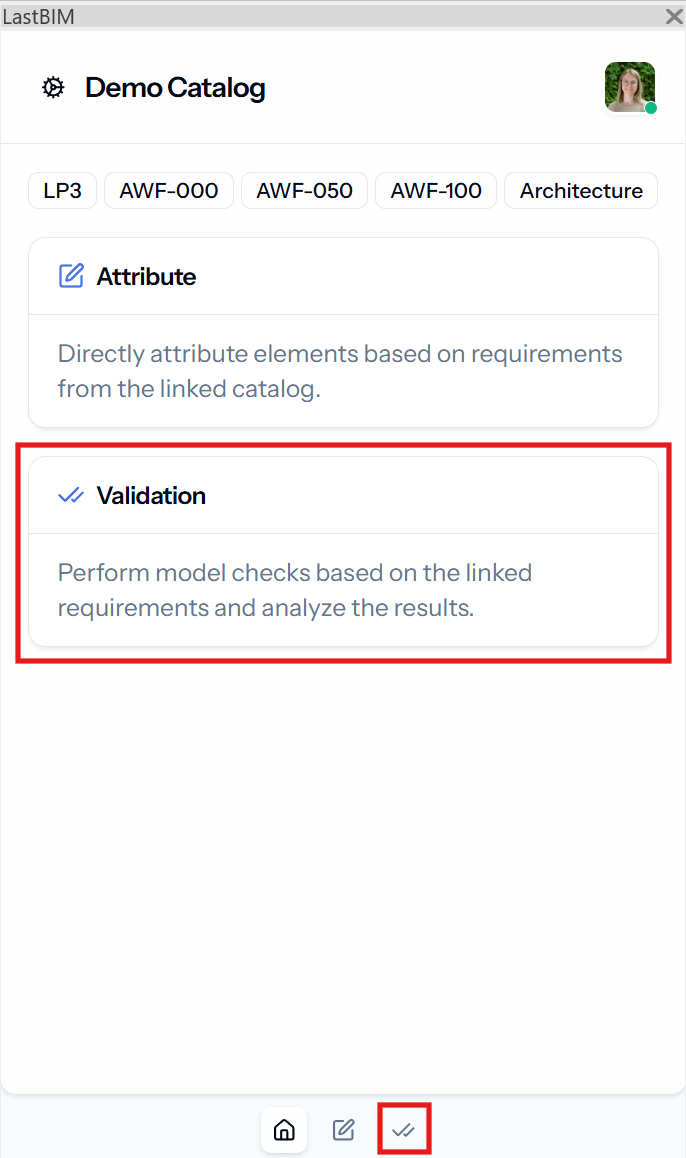
💡Use the navigation bar at the bottom to quickly switch between the home menu, attribution and validation
Was this helpful?
Still need help? Share an idea