Configure your Plugin
Learn how to set up the plugin before diving into the attribution or modelcheck.
Written By Antonia Langner
Last updated 5 months ago
Before you start
In order to access our plugin you need to login to an account with a valid “Integrations” or “Pro” license.
Configuring the plugin
After logging in, you will be prompted to select the information requirements to ensure that you will only be working on the attributes that are required for the specific model at hand. No more no less.
Select the Project that you are working on. You will also find your standards alongside your projects so you can use them directly for the attribution.
Select the Catalog from your project / standard, that you want to apply on the model.
Choose one or more Information levels if you want to filter the properties, e.g. for a specific project phase, use case or milestone. Depending on the setup of the catalogue, you will have one or two fields with information levels.
Select one or more Domains if your project specifies who is responsible for delivering which information. Selecting a domain will filter specifications and properties.
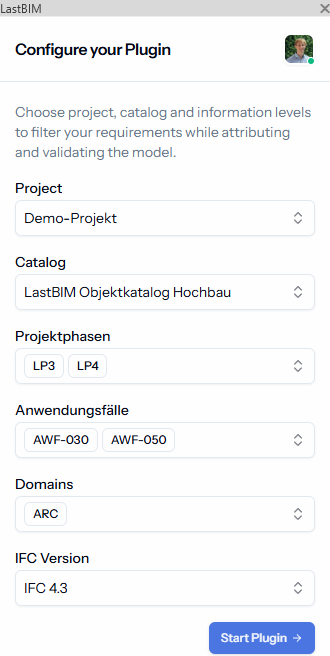
Selecting information levels and domains is optional. If you leave the fields empty, every property will be included regardless of information levels and domains.
Press Start Plugin to continue.
Was this helpful?
Still need help? Share an idea