Tags
Learn how you can use tags to categorize and filter your catalog in LastBIM!
Written By Stefan Hellweg
Last updated Over 1 year ago
What are tags?
Tags in LastBIM provide a powerful way to manage metadata within your catalogs. This feature allows you to attach custom metadata to properties and specifications, enabling you to filter the catalog and extract exactly the information that you need.
You can use tags to filter your catalog for various purposes:
Managing your catalog on the platform:
Filter the properties and specification overviews by your tags to manage your catalog more efficiently.
Attribution and model checking:
Filter the catalog by your tags to attribute and check exactly the information that you need for the current model.
Creating a new project with a project template:
Filter the project template by your tags to reduce it to the information that you need for the new project.
Read more about using tags for filtering in the section Using tags for filtering.
Creating new Tags
To create tags, follow these steps:
Navigate to the tags: Go to the
Tagssection in the sidebar of the catalogCreate a tag group:
Click on
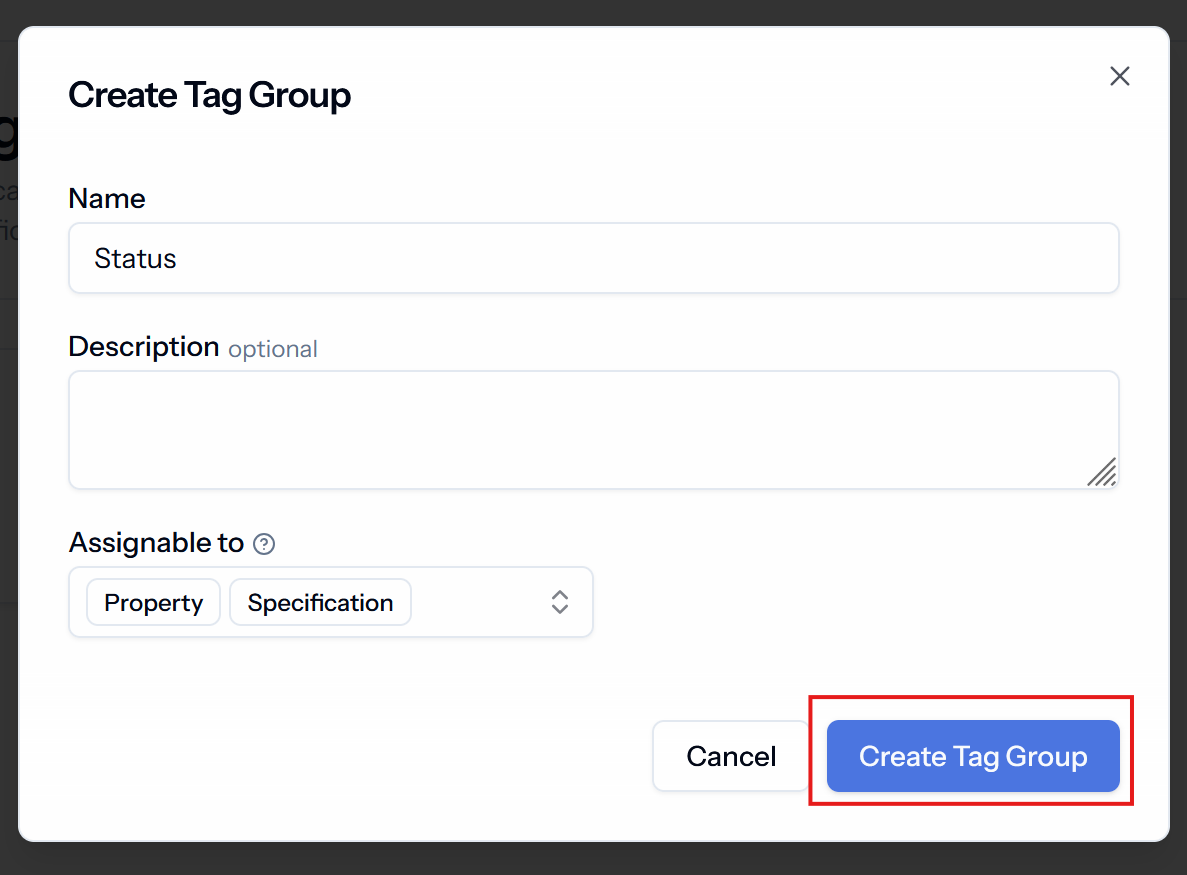
Add Tag Groupin the top right corner.For each tag group, you can define whether you want to use the tags for properties, specifications, or both.
Create new tags
Click on
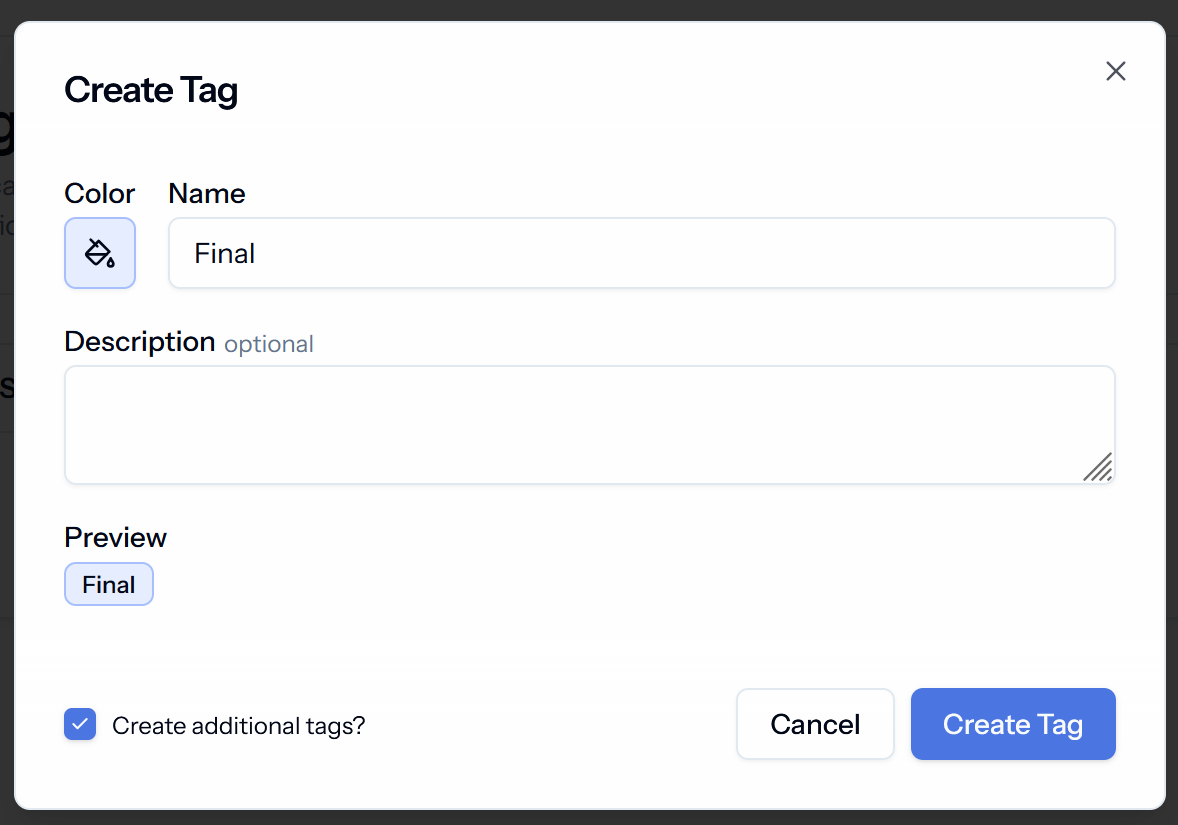
Add Tagwithin the tag group that you just created to create new tags.You can give each tag a different color to make it easier to differentiate the tags in the table views.
💡 Hit “Create additional tags” to save yourself a couple of clicks when creating multiple tags!
Example
Suppose you are working on a catalog with a large team. To keep an overview of which elements of the catalog are final and which are not, you decide to use tags. You create a tag group that holds the tags with the different statuses. Now, you just add your tags Final and Draft within the tag group Status.
Other Practical Examples
Differentiating Project Types: Use Tags to manage different project types within a single catalog. For example, you can tag items specific to
hospitals,airports, orresidential buildings. This allows you to filter the catalog based on the project type, ensuring you only see relevant information.Managing Optional Features: Filter out
optionalfeatures during attribution or model checking by tagging them appropriately. This helps you focus on the essential elements and streamline your workflow.
Assigning Tags to Specifications and Properties
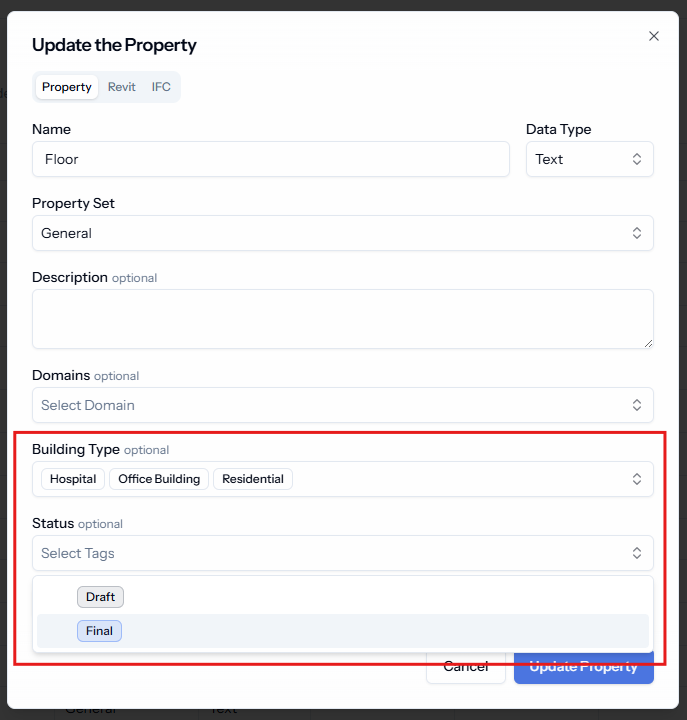
When editing or creating new specifications and properties, you can assign the tags that you have created. There will be an extra dropdown for each tag group . Tags are always an optional information.
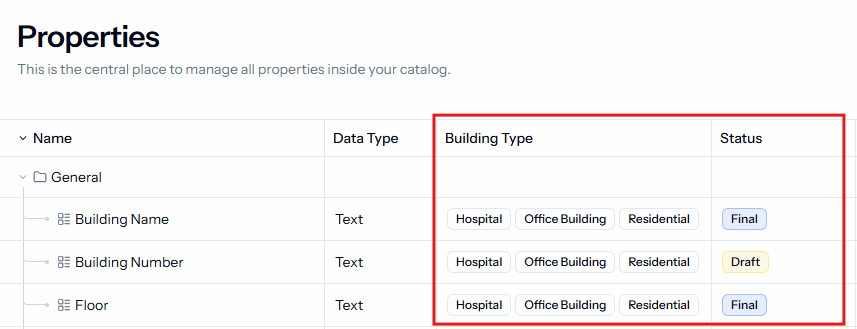
Your tags will appear in extra columns in the specification / property overview.
Using tags for filtering
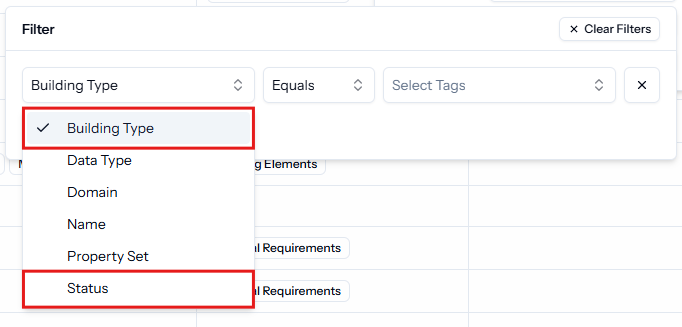
Filtering the specifications / properties overview
You will find one filter option for each tag group. Select the tag group that you want to use as a filter and choose the tag.
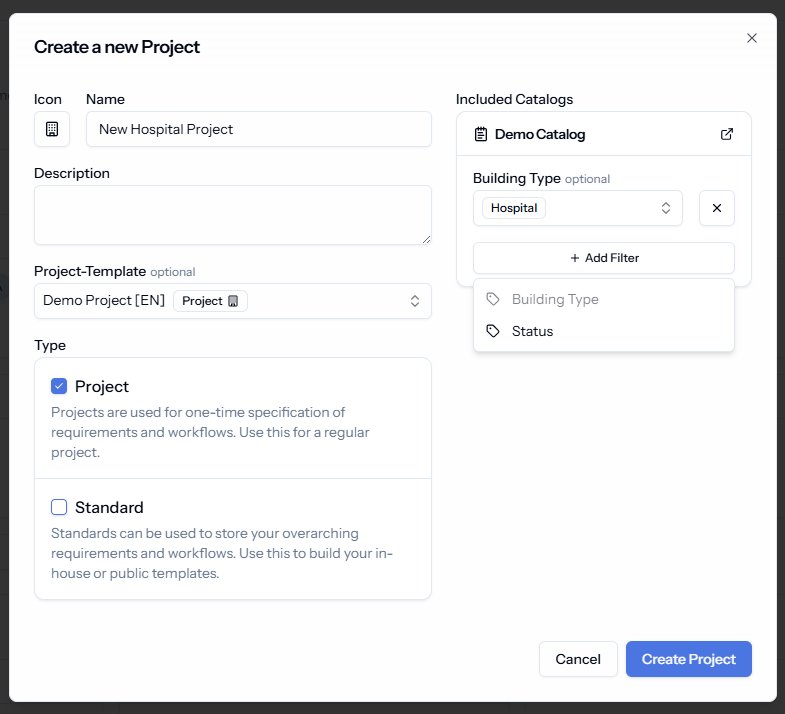
Filtering the project template
If the catalogs in the project template have tags, you can add tags as a filter.
Note: If you want to keep the elements that have no tags, you need to select the optionNo tags [ ]
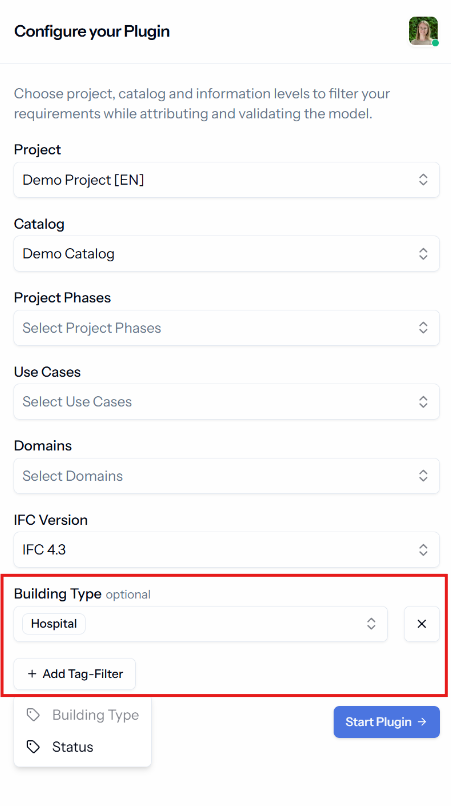
Filtering in the plugin
In the plugin you can also add a filter for every tag group in the catalog.
Note: If you want to include the elements that have no tags, you need to select the optionNo tags [].
Was this helpful?
Still need help? Share an idea