Catalog Settings
Written By Antonia Langner
Last updated 4 months ago
Locking Catalogs
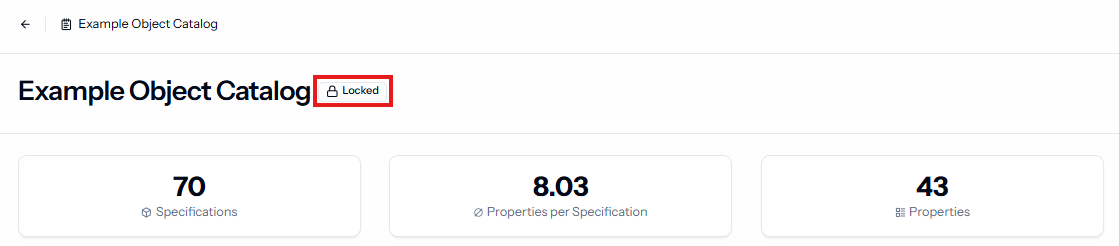
Catalogs can be locked, to prevent unintentional changes eg. when requirements have been agreed on and should not change for the rest of the project phase.The catalog can always be unlocked when it’s necessary to make changes again. Both, locking and unlocking the catalog will appear in the history.
Requirements
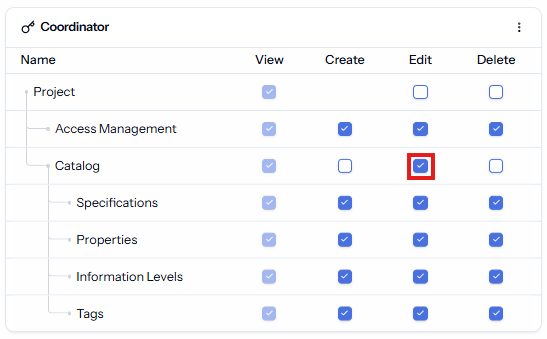
Locking and unlocking catalogs requires the Edit right for catalogs.
How to lock catalogs
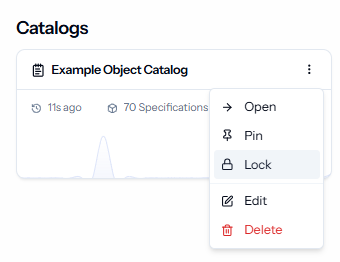
When you are in the project in the catalogs overview, you find the “Lock” option in the menu of the catalog card. When the catalog is already locked, you can unlock it here instead.
When you are in the catalog, you find the lock button on the dashboard in the top right corner next to the Edit button.
Was this helpful?
Still need help? Share an idea