Property Revit Mappings
Revit mappings enable you to map properties on LastBIM to different parameters in Revit. They can be either mapped to built-in, type or instance parameters.
Written By Niklas Portmann
Last updated 11 months ago
To define and edit Revit mappings for a property, open the edit dialog of the property and click on Revit on the toggle button at the top.

Shared Parameter vs. Built-In Parameter
In the Revit mapping you can switch the Mapping Kind between Shared Parameter and Built-In Parameter.
Shared Parameter:
Use the setting Shared Parameter, if you want to define how the parameter should be handled in Revit, e.g. if you want the parameter to appear in a specific parameter group or want to use your existing shared parameters with their GUIDs.Built-In Parameter:
Use the setting Built-In Parameter, if you want to use the information of a built-in parameter without creating a new custom parameter within Revit. When exporting the model to IFC, it will be exported according to the IFC setting of the parameter on LastBIM.
Shared Parameter Mappings
Shared parameter mappings are the default mappings for properties on LastBIM. You can map a property to either an Instance , Type or Dual parameter by selecting the Parameter Kind:
Instance Parameter
The parameter is assigned to an instance of an element in Revit. Default.Type Parameter
The parameter is assigned to a type of an element in Revit. All changes made to it will be applied to the whole category or family of elements in Revit.Dual Parameter
Dual parameters are custom to LastBIM. A single property is assigned to both an instance and a type parameter in Revit. Depending on which value is set, you’ll be able to edit either one. Only use this if you know what you’re doing.
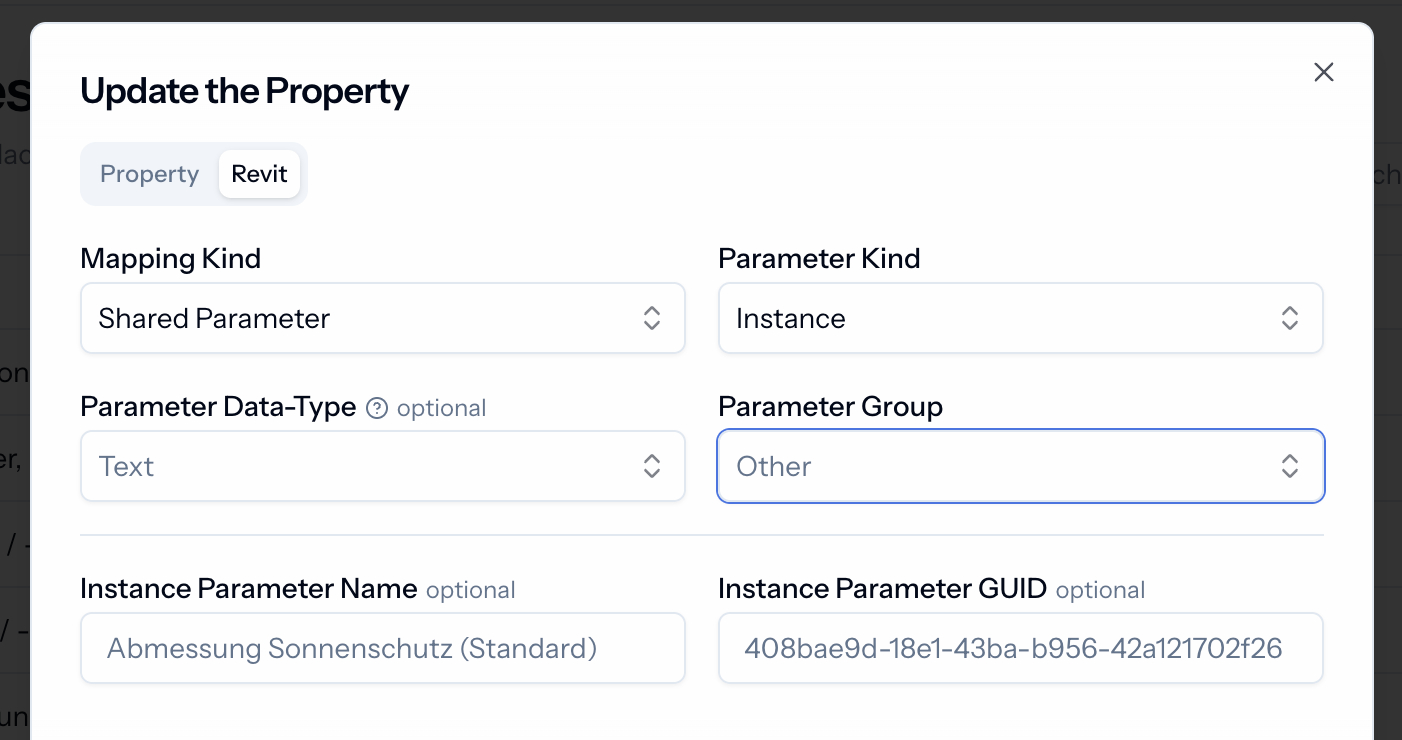
The fields for the shared parameters are the same for parameter kinds of both Instance and Type . All fields here are optional and filled based on the values is defined in the base property view. You can already see the default values in light grey in the fields.
Built-In Parameter Mappings
Built-in parameter mappings are used to map a LastBIM property to a Revit parameter which is managed by Revit itself and not user-defined. You just have to select a language (your user language is pre-selected) and the name of the parameter.
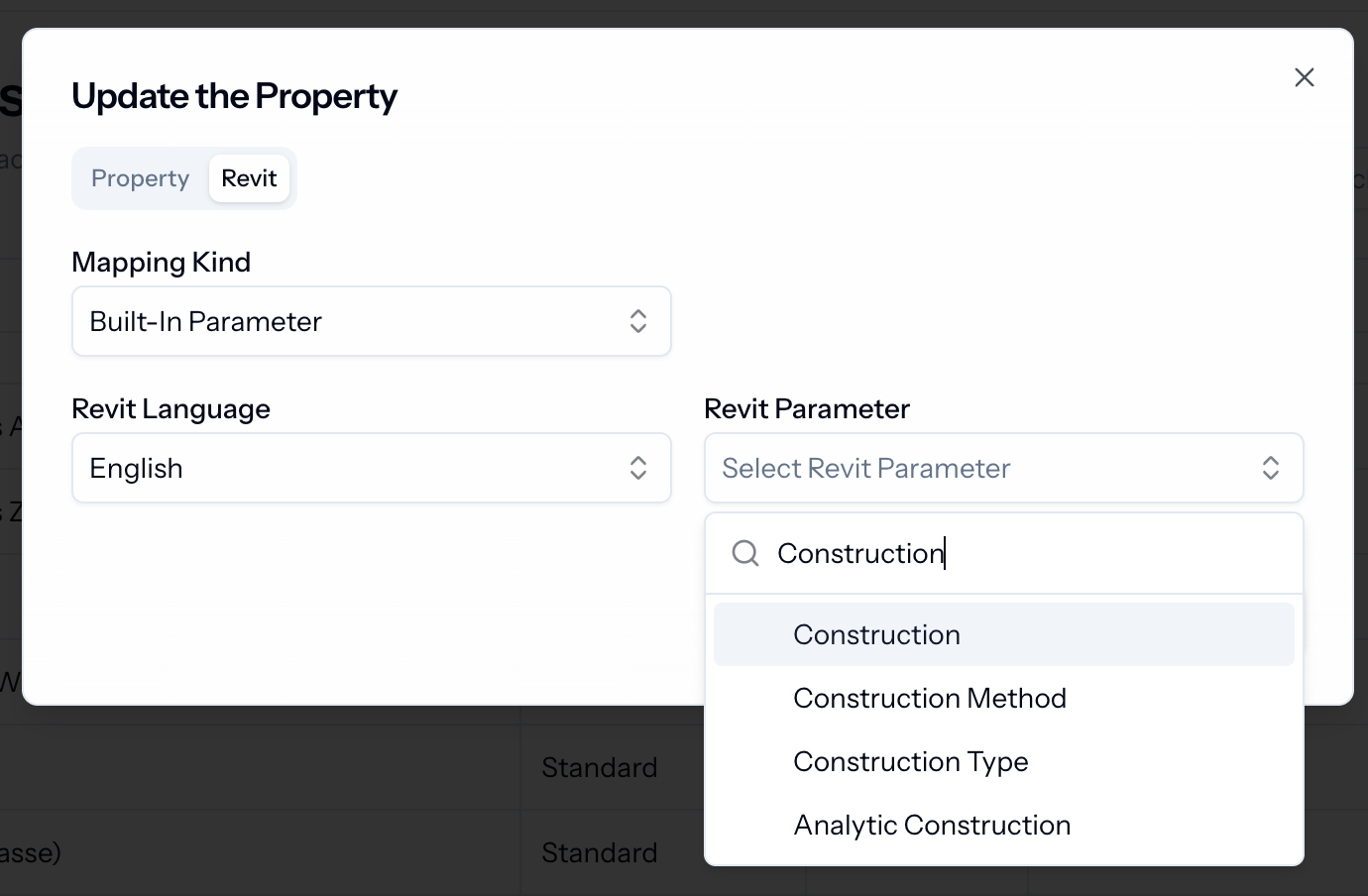
💡 Built-in parameters which are selected in a single language, will automatically be translated by our plugin into other support Revit languages.