Changelog

Follow new updates and improvements to LastBIM.

Locking Catalogs | Shared Parameter Groups

🆕 Lock & Unlock Catalogs

Catalogs can now be locked, to prevent unintentional changes eg. when requirements have been agreed on and should not change for the rest of the project phase.

The catalog can always be unlocked when it’s necessary to make changes again. Both, locking and unlocking the catalog will appear in the history.
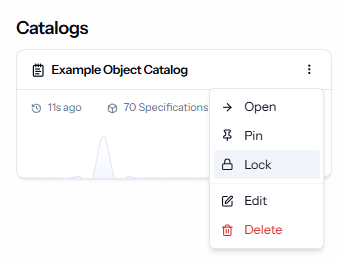
Locking and unlocking catalogs requires the Edit right for catalogs.


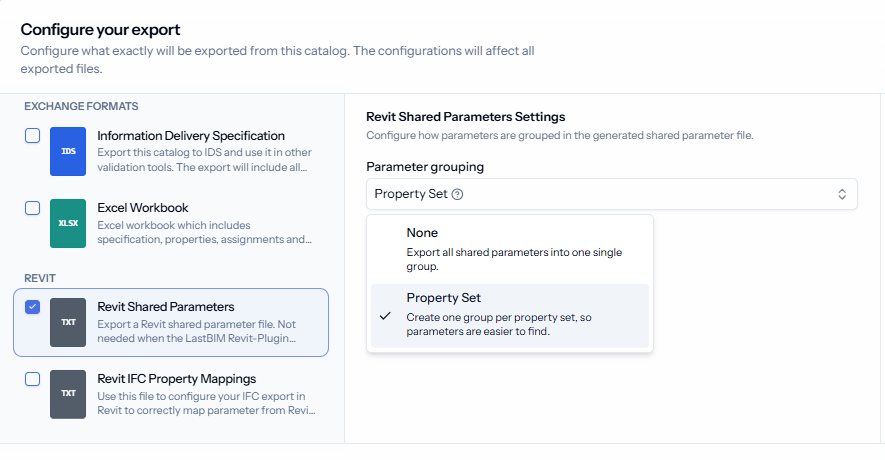
🆕 Configure Groups in Shared Parameter Export

When exporting the shared parameter file for Revit, you can now configure that the parameters are grouped by the LastBIM property groups instead of one group "LastBIM properties". This makes it easier to find specific parameters from the shared parameter file when you are using it e.g. to get the parameters in families.

Grouping by property group will be the new default.

Further Improvements

  • The discipline fields are no longer visible when no disciplines are configured for the project.
NewImproved

Tag Update: Presets, Single Selection and Icons

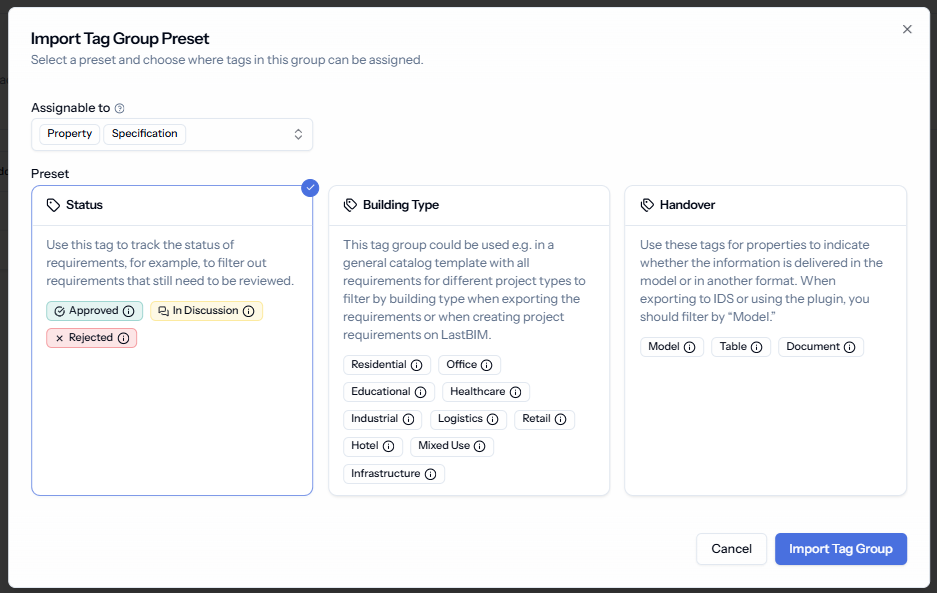
We launched a group of updates regarding the tags in catalogs that make using tags easier:

🆕 Tag Presets

If you are looking for inspiration for how to use tags, you can now have a look at our templates. We created 3 presets that you can import and directly use in your catalog or adjust them to your needs:

  • Status

  • Building Type

  • Handover

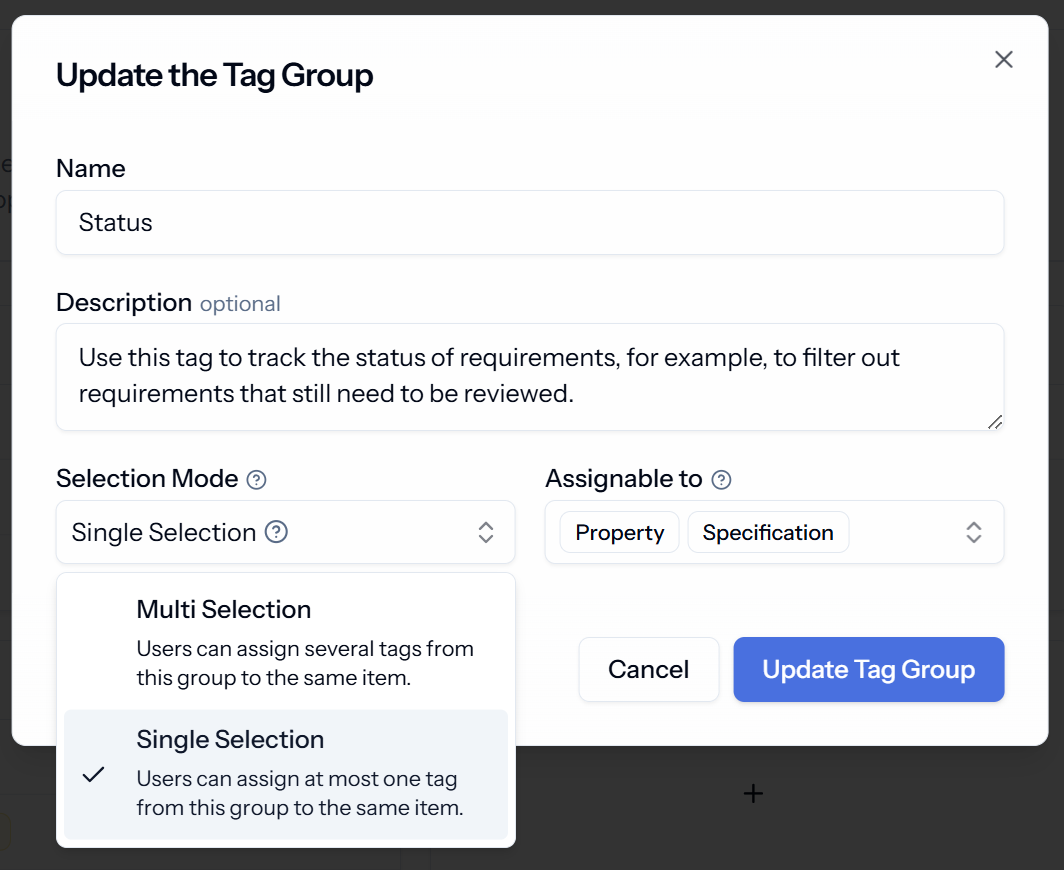
🆕 Selection Mode: Single vs Multi Selection

You can now define that a tag group should be a single selection, so that e.g. a property can always only have one value in this tag group like for “Status”.

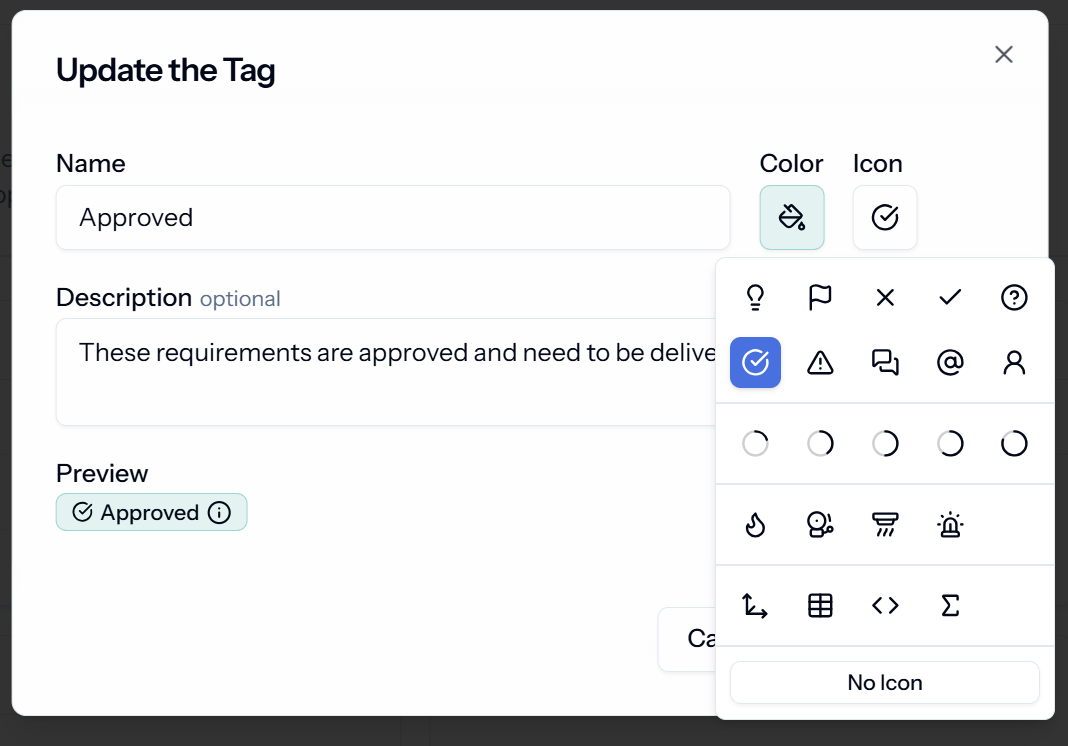
🆕 Icons for Tags

To make the tags even more accessible, you can now add icons to your tags.

New

Property Detail View

We have an exciting update to share with you: We added the property detail view, designed to to manage their information requirements in property-driven workflows and make managing properties across multiple specifications faster and more efficient!

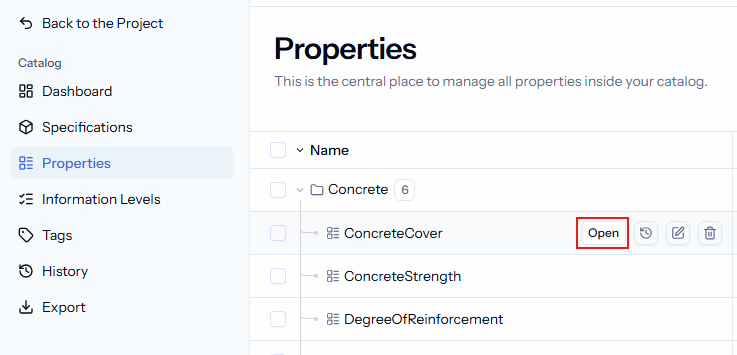
Just like you can open specifications to view and manage their properties, you can now open properties directly from the property overview. This gives you a centralized place to view and manage assignments and settings for each property.

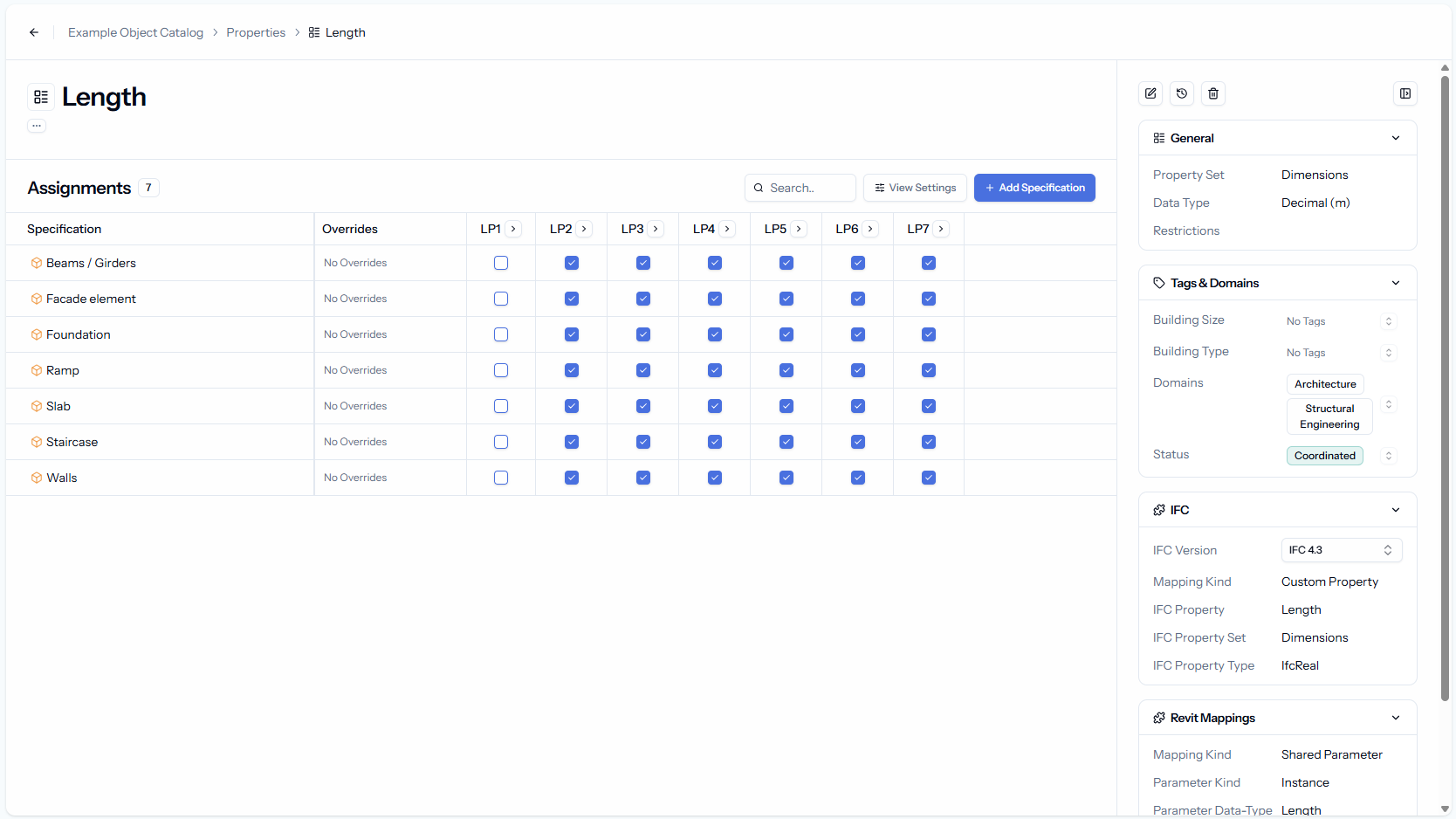
Inside the detail view, you can:

  • See All References: View all specifications and information levels where the property is used

  • Add/Remove Assignments: Easily add or remove multiple specifications and information levels for a property without navigating to each specification.

  • Override Insights: Check which property settings are overridden in different specifications.

  • Manage Settings: Adjust general settings, tags, and mappings (IFC and Revit) for the property.

This view introduces a new layout that we’ll also adopt for the specification detail view in the future:

  • Collapsible Sidebar: On the right, you’ll find all property details, including data type, value restrictions, tags, and IFC/Revit mappings.

  • More Space for Assignments: Collapse the sidebar to maximize space and focus on property assignments.

New

Earlier updates